Focus Pocus
When I started writing my PhD thesis, I found it hard to stay focused. Writing was mentally draining, and because the work was so long and repetitive, my brain kept reaching for quick rewards like surfing the web. An hour could slip by before I noticed, so I wanted something that would catch me drifting and pull me back.
I also wanted to try vibe coding, which was still quite new at the time, just to see what I could make and whether it could be something useful to me. So in January 2026, I started Focus Pocus. There are already focus apps out there, like Forest, Freedom, and Cold Turkey. But I wanted to build one, try it out for myself, and keep my data on my own computer, because I think people should be in charge of their own data.
“Focus Pocus is a small desktop app that runs in the background while you work, notices when you drift, and nudges you back.”
It has a timer like a Pomodoro app, but it also keeps an eye out for when you’ve gone idle or wandered onto a distracting site, and speaks up when you have.
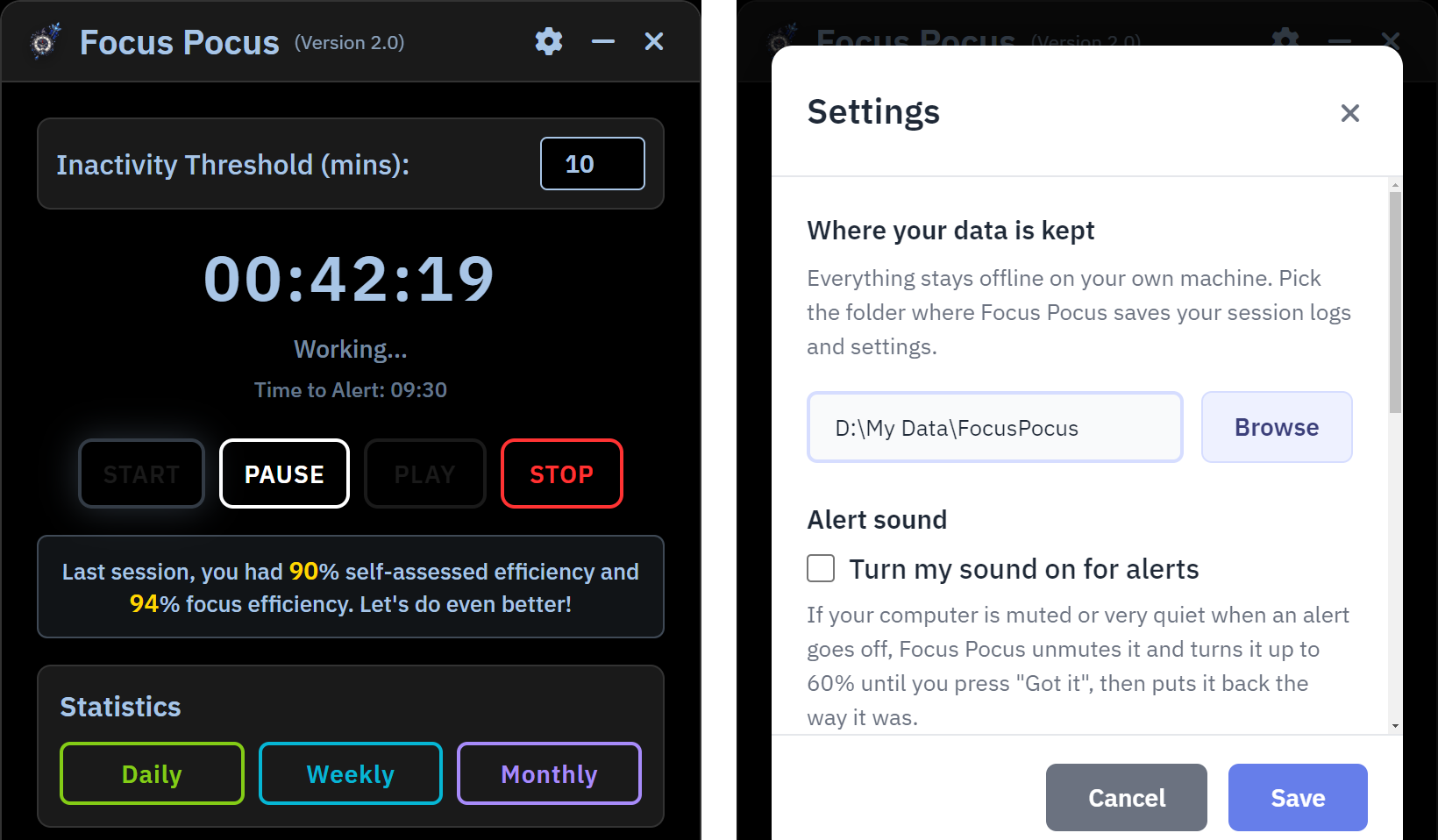
Figure 1. Left: the main window during a session, with the timer, a countdown to the next nudge and a note on how the last session went. Right: the settings, where you choose the folder Focus Pocus saves your data to.
The nudge and the escalating beep
You set an inactivity threshold, say ten minutes, and if your mouse and keyboard stay quiet for longer than that, Focus Pocus pops up and beeps. A site on your blocklist sets off the same nudge after 15 seconds in front of you. It keeps beeping every five seconds until you press “Got it”, and each beep is louder than the last, from 30% up to full volume.
Of course, you need to be unmuted to hear any of this. Focus Pocus checks your sound when it opens and again about five seconds before a nudge. If you’re muted or the volume is very low, a banner tells you, with a button to turn your sound back on. You can also turn on a setting that switches your sound on for alerts, and once you respond it puts the volume back where it was.
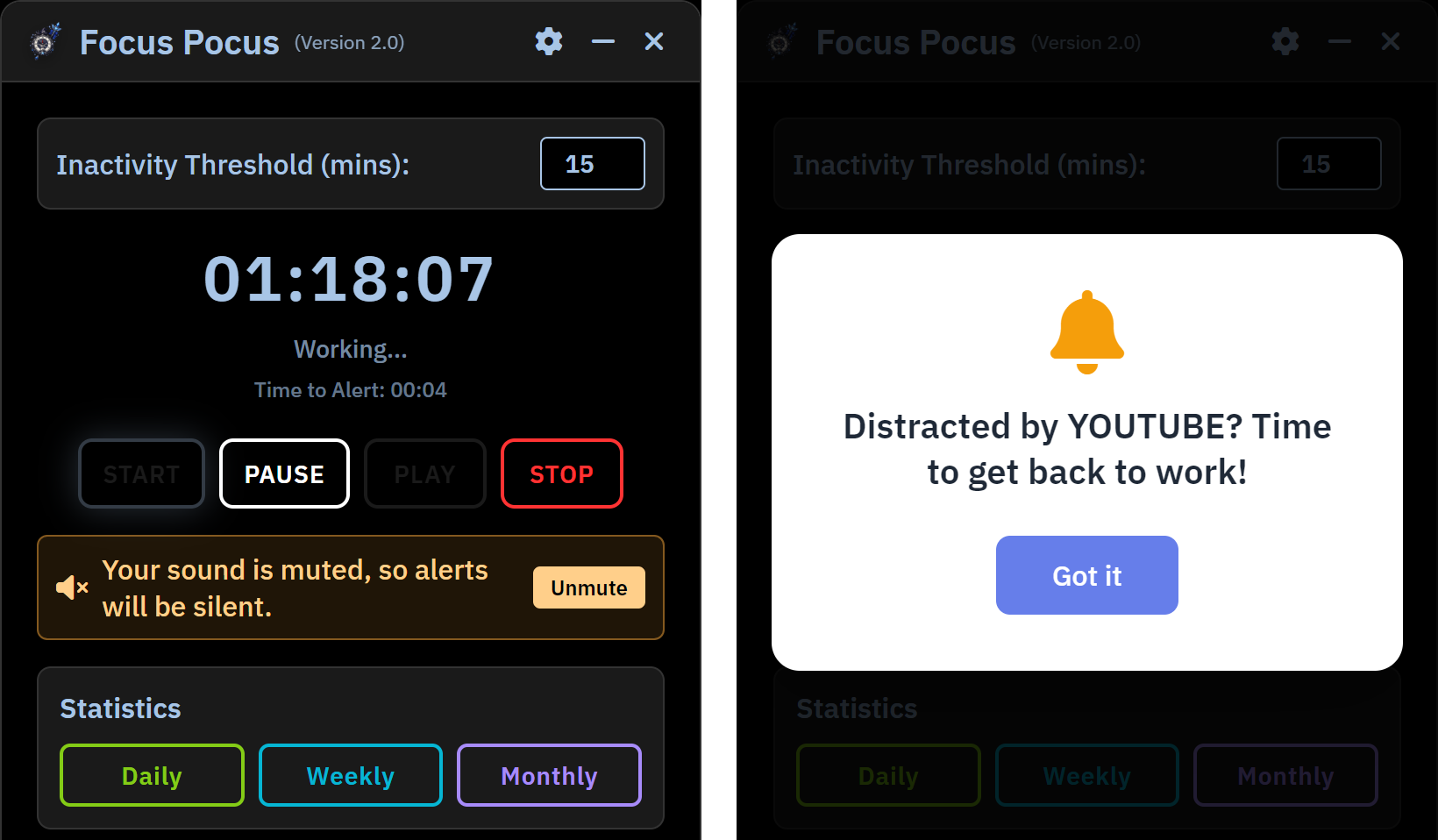
Figure 2. Left: the computer is muted, so a banner warns that alerts will be silent. Right: the nudge you get after drifting onto YouTube.
Bring your own distractions
Everyone has their own rabbit holes, so you build your own blocklist. In the settings, you add the name you’d see on a site’s browser tab or an app’s title bar: youtube, tiktok, netflix, a comfort game, a manga reader. Focus Pocus then looks for those words in whichever window is in front and nudges you after 15 seconds on one, while the list itself lives in a plain file on your computer.
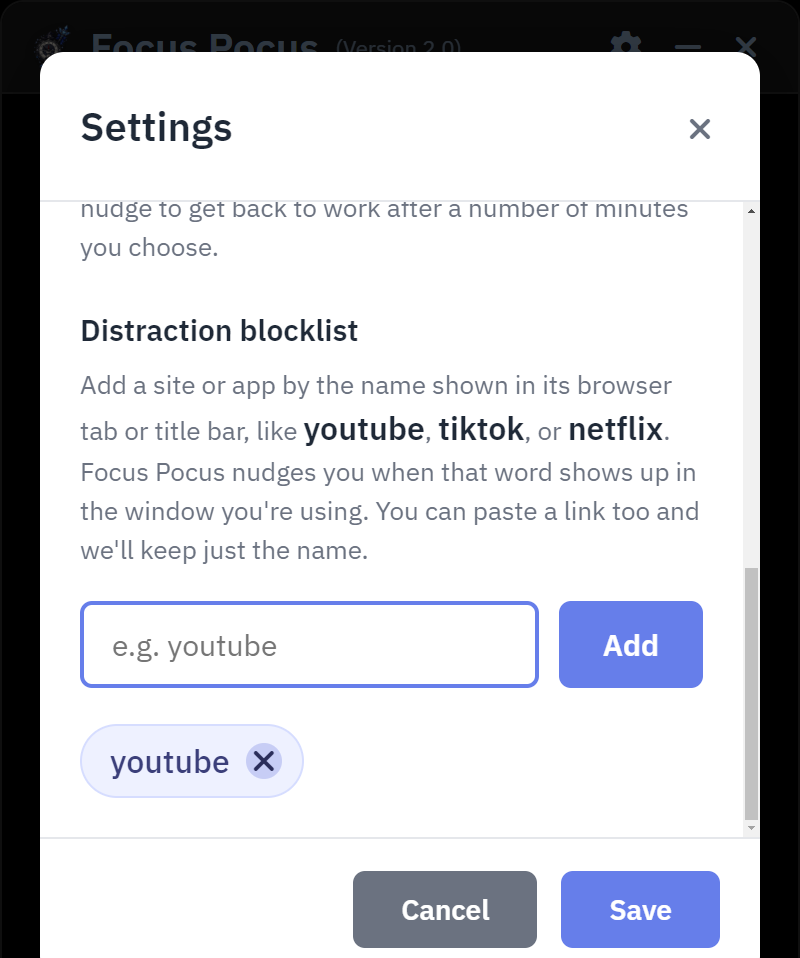
Figure 3. The blocklist in the settings, with YouTube already added.
Of course, the blocklist can’t stop you, since you can always close the app, rename a tab, or find another way around it. I made it to keep myself honest, so how strictly you use it is up to you.
Breaks on your terms
I didn’t want to force a set break time on anyone, because when you take a break depends on your own schedule. You might want a buzz after ten minutes to get back to it, or no reminder at all because you’re doing chores away from your computer, so the break reminder is optional and off by default.
If you turn it on in the settings, Focus Pocus asks each time you press pause whether you’d like a reminder, and after how many minutes. When the time is up, Focus Pocus beeps just like a nudge, getting louder until you press “Got it”. The timer stays paused until you press play, so you can finish what you’re doing first.
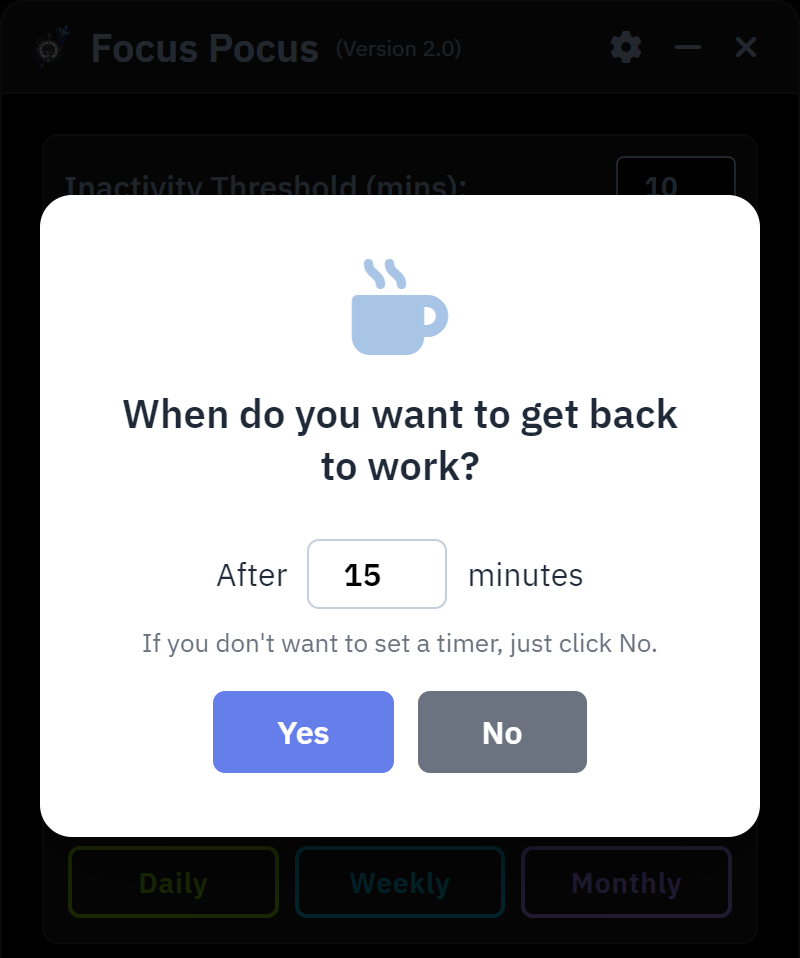
Figure 4. With the break reminder on, Focus Pocus asks when you want to get back to work each time you press pause.
Your data never leaves your machine
Keeping your data private is the part I care about most, so Focus Pocus doesn’t capture your screen or save what you were looking at:
- Idleness comes from your operating system’s idle timer, which only knows whether the mouse or keyboard has moved recently, and it’s read in the moment and never saved.
- Distractions are spotted from the title of the window in front of you. Focus Pocus never reads the page itself or takes a screenshot, and the title isn’t saved either.
- Sound is only checked for whether it’s muted and how loud it is, at the two moments above.
- Privacy: the only session data saved is your focus time, your breaks, the number of nudges, and how productive you felt, from 0% to 100%, all kept in a plain file on your computer. Nothing is sent to the cloud or GitHub, so your data stays yours.
What it tells you afterward
When you stop a session, you rate how it went. The Daily, Weekly, and Monthly buttons then add everything up: total and average focus time, nudges, breaks, and two efficiency scores, one measured by the app and one from your own ratings. Seeing them side by side shows how your own sense of a session compares with what the app measured.
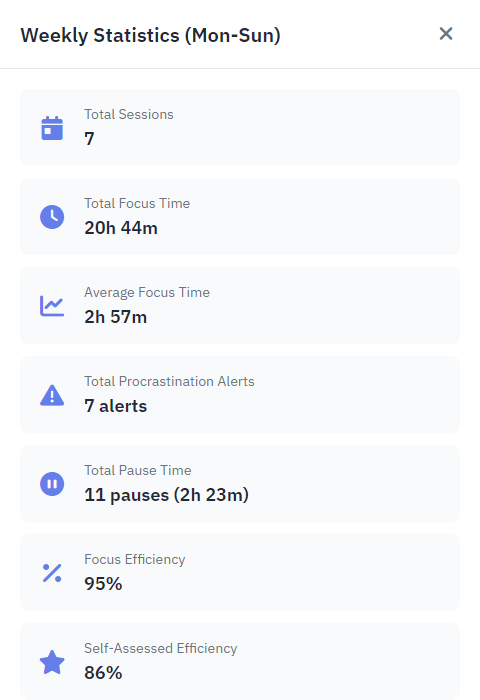
Figure 5. The weekly statistics, filled with the made-up sample sessions that come with the code. Focus efficiency counts each nudge as ten lost minutes. Self-assessed efficiency is the average of your ratings.
Closing the chapter
Focus Pocus wasn’t built to do your work for you. It caught me drifting plenty of times, and that really helped bring me back to my thesis, which I finished and successfully defended. Now that it has done what I needed, it’s time to close the chapter on what started as a fun, simple vibe-coded project. Development stops here, unless a bigger project brings me back to it or other people are interested.